
Introduction
Modern professionals rely on speed, efficiency, and seamless multitasking to stay productive throughout the workday. Whether you work from home, in a corporate office, or while traveling, having the right workstation setup can make a significant difference in your daily performance. One of the most valuable additions to any workspace is a Windows docking station for dual monitors. It simplifies connectivity, expands your laptop’s capabilities, and creates a more organized and productive environment.
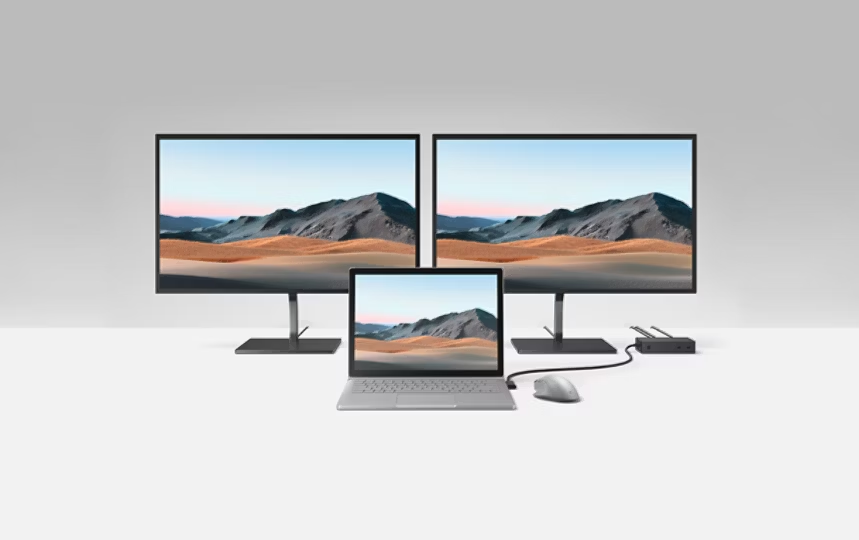
As businesses increasingly embrace hybrid work models and employees handle multiple applications simultaneously, a dual-monitor setup has become more of a necessity than a luxury. Pairing that setup with a Windows docking station for dual monitors allows professionals to connect displays, peripherals, and network devices through a single hub, reducing cable clutter and improving workflow.
Understanding a Windows Docking Station for Dual Monitors
A Windows docking station for dual monitors is an external device that connects to your Windows laptop or desktop and expands its connectivity options. Instead of plugging several accessories directly into your computer, the docking station acts as a central hub.
Most docking stations provide multiple ports, including HDMI, DisplayPort, USB-A, USB-C, Ethernet, audio connections, and charging capabilities. This enables users to connect two external monitors alongside keyboards, mice, printers, storage devices, webcams, and more—all through one convenient connection.
The result is a clean, organized workspace that supports professional productivity without the hassle of constantly reconnecting devices.
Boost Productivity Through Dual Displays
One of the biggest reasons professionals invest in a Windows docking station for dual monitors is the productivity boost that comes with additional screen space.
Instead of constantly switching between applications, users can dedicate each monitor to different tasks. For example:
Financial Professionals
Accountants and financial analysts can keep spreadsheets on one display while reviewing reports, emails, or accounting software on another.
Software Developers
Developers often place code editors on one monitor while viewing documentation, testing environments, or debugging tools on the second display.
Designers
Graphic designers and video editors can preview creative projects on one monitor while keeping editing tools and timelines visible on the other.
Business Managers
Managers can monitor dashboards, attend virtual meetings, and respond to emails simultaneously without disrupting their workflow.
The larger workspace reduces interruptions and allows professionals to complete tasks more efficiently.
Simplify Your Workspace
A cluttered desk often leads to distractions and reduced efficiency. A Windows docking station for dual monitors helps eliminate unnecessary cables by centralizing all device connections.
Instead of plugging in:
- External monitors
- USB drives
- Keyboard
- Mouse
- Ethernet cable
- Audio devices
- Webcam
Users only connect a single cable between the docking station and their Windows laptop.
This streamlined setup not only looks professional but also makes it easier to maintain a clean and organized workstation.
Support Hybrid and Remote Work
Remote work has become a permanent part of many industries. Professionals frequently move between home offices and company workstations throughout the week.
A Windows docking station for dual monitors makes this transition effortless.
At the office, users simply connect one cable to instantly access dual displays, wired internet, charging, and connected accessories.
At home, the same docking station provides an identical experience, ensuring consistency regardless of location.
This convenience saves valuable time every day while reducing wear on laptop ports caused by repeatedly connecting multiple devices.
Improve Multitasking Capabilities
Today’s professionals rarely work with a single application.
A typical workday may involve:
- Video conferencing
- Documents
- Web browsers
- Project management software
- Communication platforms
- Cloud storage
- Spreadsheets
Managing all these applications on one small laptop screen can quickly become frustrating.
A Windows docking station for dual monitors enables users to spread their workload across multiple displays, making multitasking much more comfortable and reducing the need to minimize and maximize windows repeatedly.
Better Video Conferencing Experience
Virtual meetings have become an essential part of professional communication.
With a Windows docking station for dual monitors, users can dedicate one screen to the video conference while keeping presentation materials, notes, or shared documents open on the second display.
This setup allows presenters to remain engaged with meeting participants while accessing important information without constantly switching windows.
The result is smoother presentations and more effective communication.
Faster Access to Essential Peripherals
Most professionals depend on multiple accessories throughout the workday.
Common connected devices include:
External Storage
Fast access to backup drives improves file management and data security.
Keyboard and Mouse
Full-sized peripherals provide greater comfort than laptop keyboards and touchpads.
Wired Network
Ethernet connections deliver more reliable and stable internet than Wi-Fi, especially during video calls or large file transfers.
Audio Equipment
Professional microphones, speakers, and headsets can remain permanently connected.
A Windows docking station for dual monitors keeps every accessory ready to use without reconnecting devices each time you sit down.
Enhance Ergonomics
Working on a laptop alone often encourages poor posture.
Using two external monitors allows professionals to position screens at eye level, reducing neck strain and improving overall comfort.
Combined with an external keyboard and mouse connected through a Windows docking station for dual monitors, users can create a much more ergonomic workspace that supports long hours of productive work.
Better ergonomics can also contribute to improved concentration and reduced fatigue during extended work sessions.
Increase Efficiency for Creative Professionals
Creative industries benefit tremendously from additional screen space.
Photographers can edit images while comparing originals.
Video editors can dedicate one monitor to timelines and another to previews.
Architects and engineers can view technical drawings while referencing specifications.
Marketing professionals can manage campaigns while monitoring analytics dashboards.
A Windows docking station for dual monitors provides the flexibility needed for demanding creative workflows where multiple applications remain open throughout the day.
Reduce Cable Management Problems
Cable clutter is a common issue in busy workspaces.
Without a docking station, professionals often connect:
- HDMI cables
- USB hubs
- Chargers
- Ethernet adapters
- Audio cables
A Windows docking station for dual monitors significantly reduces visible cables by routing everything through one central device.
This not only improves aesthetics but also simplifies troubleshooting and workspace maintenance.
Expand Connectivity Options
Many modern Windows laptops prioritize slim designs, resulting in fewer built-in ports.
Professionals frequently need more connections than their laptops provide.
A Windows docking station for dual monitors solves this limitation by adding multiple expansion ports that accommodate current and future accessories.
Whether connecting legacy USB devices or modern USB-C peripherals, the docking station ensures compatibility without sacrificing convenience.
Save Time Every Day
Small time savings accumulate over weeks and months.
Instead of spending several minutes reconnecting accessories each morning, professionals simply connect one cable.
The docking station immediately powers displays, accessories, internet, charging, and external devices.
This convenience improves workflow while minimizing interruptions at the beginning and end of each workday.
Future-Proof Your Workspace
Technology continues evolving, but productivity fundamentals remain consistent.
A quality Windows docking station for dual monitors supports workspace upgrades over time.
As professionals add larger monitors, faster storage devices, or newer accessories, the docking station continues serving as the central connection point.
This flexibility helps protect technology investments while allowing gradual workstation improvements.
Choosing the Right Docking Station
Before purchasing a Windows docking station for dual monitors, professionals should consider several important factors.
Display Support
Verify that the docking station supports two external monitors at your preferred resolution and refresh rate.
Port Selection
Ensure sufficient HDMI, DisplayPort, USB, Ethernet, and audio ports for your devices.
Power Delivery
Choose a docking station capable of charging your Windows laptop while connected.
Compatibility
Confirm compatibility with your Windows version, laptop model, and USB-C or Thunderbolt connection.
Build Quality
A durable docking station provides long-term reliability in both office and home environments.
Conclusion
A Windows docking station for dual monitors has become an essential productivity tool for modern professionals. It simplifies workspace organization, supports efficient multitasking, improves ergonomics, reduces cable clutter, and provides quick access to all essential devices through a single connection.
Whether you are a business executive, designer, developer, accountant, educator, or remote worker, investing in a Windows docking station for dual monitors can transform your daily workflow. By creating a cleaner, faster, and more efficient workstation, professionals gain the flexibility and performance needed to meet today’s demanding work environments while preparing for future technological growth.
